Learn English words in your browser
A review card on every new tab, translations of words on any site and the new words of every page. All of it works with your Engofy deck.
No account needed: the new tab then shows random words.
A card on every new tab
Open a tab and there is a card from your deck: a word, a phrase, an irregular verb or a grammar rule. Try to recall the answer first, then see the meaning, the pronunciation and an example. You can change the timers, the shortcuts and which cards to show in the settings.
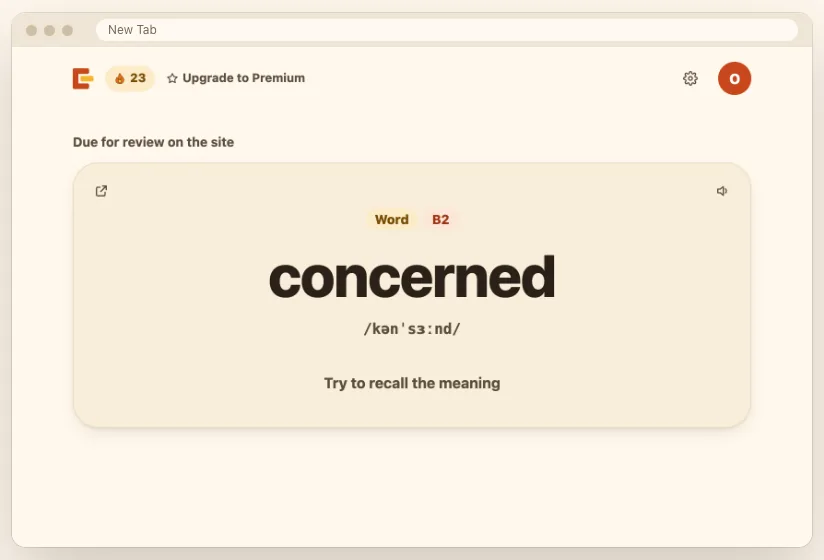
The answer when you are ready
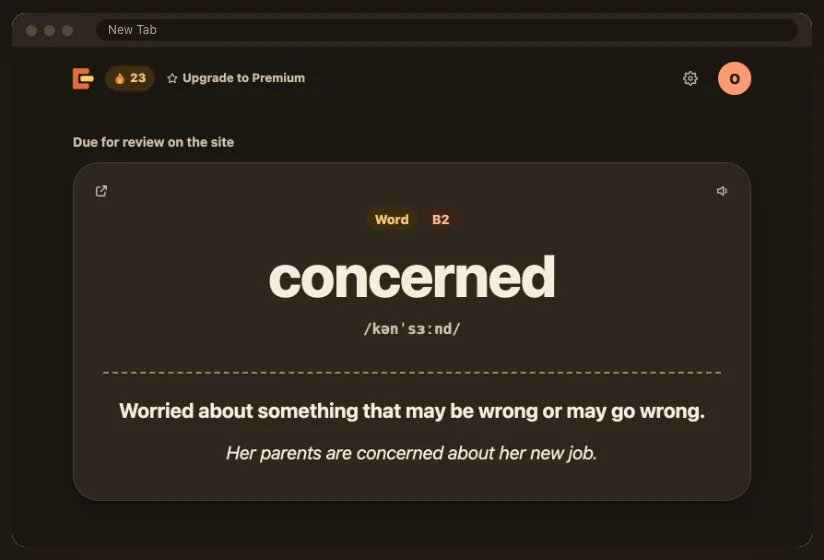
The answer opens by itself after a few seconds, or right away when you press a key. The card theme, light or dark, can be changed in the extension settings.
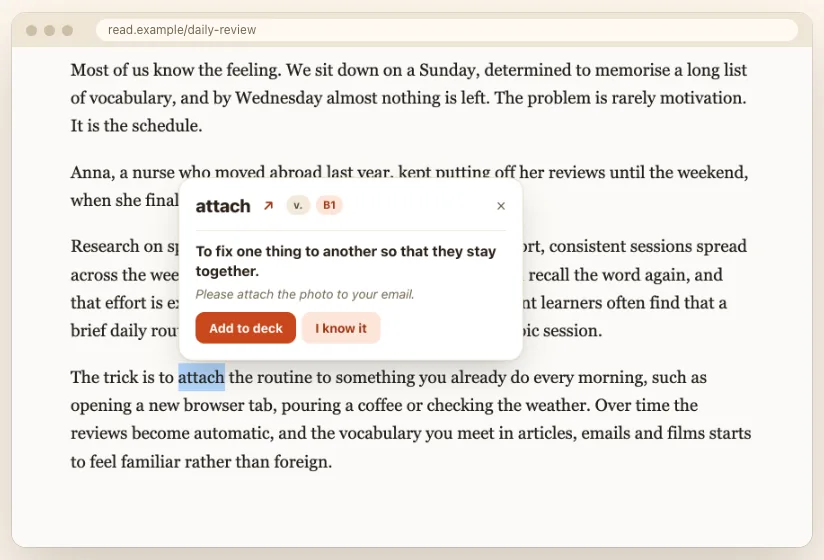
Translate on any site
Select a word or a short phrase and press Alt+Shift+E, or pick "Look up in Engofy dictionary" in the right-click menu. A card shows the translation, the part of speech, the level and the forms of the word. It also tells you whether it is a phrasal verb and which tense your sentence uses. You can add the word to your deck with one click.
Translation is off by default. Chrome asks for access to other sites only when you turn it on.
Words you do not know yet
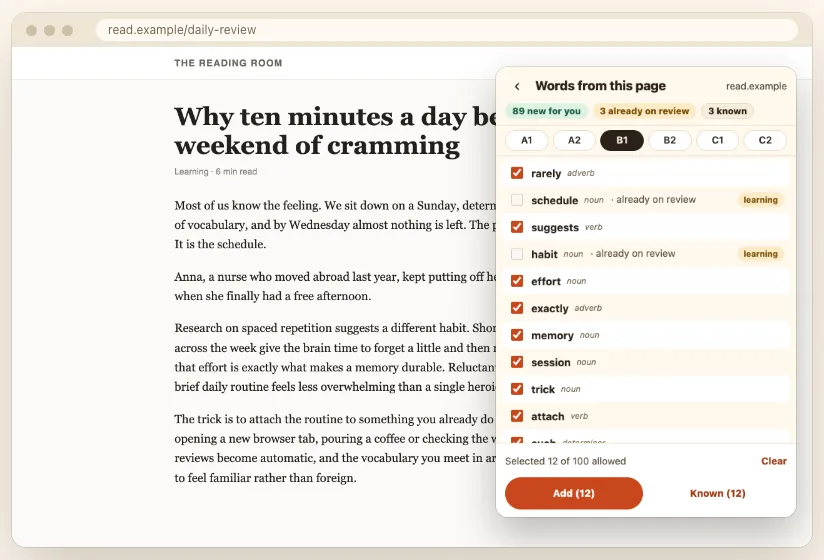
Open the extension on an article and it shows the words that are new to you, grouped by level from A1 to C2. Tick the ones you want and add them all to your deck at once.
The extension has to be connected to your account for this.
Connect in a minute
- Install the extension From the Chrome Web Store.
- Open a new tab The first card is already there. No account needed.
- Connect your account Confirm the device on engofy.com, and the extension shows cards from your own deck.
Grades, the review schedule and your streak are kept in your account on engofy.com.
Frequently asked questions
How do I get the regular Chrome new tab back?
Open chrome://extensions and turn Engofy off (or remove it). The regular new tab comes back right away. Your account and deck on engofy.com are not affected.
Can I use only the translation on sites, without the new tab?
Not yet. Chrome applies the new tab replacement to the whole extension, so it cannot be turned off on its own. That is a limit of the browser, and Engofy settings cannot change it.
Why does Chrome ask whether to keep the new tab change?
That is how Chrome warns you that an extension has replaced the new tab page. Confirm the change to use Engofy.
How do I turn on translation on sites, and can I take the access back?
Open the extension settings (the gear icon on the new tab or in the window that opens from the extension icon) and turn on "Look up words on any site". Only then does Chrome ask for access to other sites. You can take it back in chrome://extensions: open the details of Engofy and change the site access.
What does the extension know about the sites I visit?
It does not collect your browsing history and never sends the page address. The selected word and the sentence around it reach the Engofy server only when you choose the menu item or press the hotkey yourself. The server does not store them in its database, and in logs and error reports they appear as "[redacted]".
How do I disconnect a device from my account?
On engofy.com, find the extension card in your profile and press "Disconnect". The device token stops working at once.